Python Tutor: Learn Python by Visualizing Code (2026 Guide)
Let me be honest with you. When I first started learning Python, I could write the code, but I had absolutely no idea what was happening inside it. Variables changing values, functions calling other functions, lists getting modified — it all felt like magic happening in a black box.
Then I discovered Python Tutor, and everything changed.
If you’ve ever stared at a piece of Python code wondering “wait, why did that variable change?” — this post is exactly for you. I’ll walk you through what Python Tutor is, how to use it, and the specific ways it’s made me a better programmer.
Read More: Python Programming Tutorial for Beginners (With Examples)
At a Glance: Python Tutor Quick Summary
| Feature | Details |
|---|---|
| Tool Name | Python Tutor |
| Website | pythontutor.com |
| Cost | Free |
| Best For | Beginners to intermediate Python learners |
| Core Feature | Step-by-step code visualization |
| Languages Supported | Python, Java, C, C++, JavaScript, Ruby |
| Requires Installation | No — runs entirely in browser |
| My Rating | 9/10 |
What Exactly Is Python Tutor?
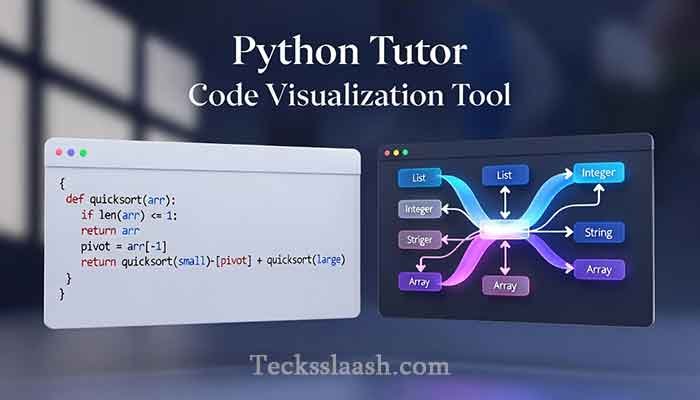
Python Tutor is a free, browser-based tool created by Philip Guo that lets you run Python code line by line and visually see what’s happening in memory at each step. Instead of just reading output in a terminal, you watch variables get created, functions get called, loops iterate, and objects point to each other — all in a clean visual diagram.
It’s not an IDE. It’s not a playground for building projects. It’s specifically designed for understanding — which makes it one of the most underrated learning tools in the Python ecosystem.
My Personal Experience with Python Tutor
Here’s the story I always share when someone asks me how I got comfortable with Python’s scope and variable behavior.
I was working through a function that modified a list inside a loop. The output was completely wrong, and I couldn’t figure out why. I’d been staring at the code for 45 minutes. Classic frustrated-programmer situation.
On a whim, I pasted the code into Python Tutor Online and clicked “Visualize Execution.” Within literally two steps of clicking “Forward,” I could see the problem: I was accidentally mutating the original list instead of a copy. The visualization showed two variables pointing to the same list object in memory — something that’s nearly impossible to “see” just by reading code.
That one session saved me hours. More importantly, it taught me something about how Python handles mutable objects that I’ve never forgotten since. No tutorial explained it as clearly as watching it happen in real time.
Honestly, that experience is why I recommend Python Tutor to every intermediate learner who’s hitting a wall with logic bugs.
How to Use Python Tutor: Step by Step
Step 1: Go to pythontutor.com
No account needed. No downloads. Just open the site and you’re ready. Click on “Start visualizing your code now” — it drops you straight into the editor.
Step 2: Write or Paste Your Python Code
You can write directly in the editor or paste code you’re already working on. I usually paste small isolated snippets — a function I’m confused about, a loop that’s behaving oddly, or a recursive algorithm I’m trying to understand.
Keep your snippets focused. Pasting 300 lines won’t give you useful visualization — aim for 10–30 lines for the best learning experience.
Step 3: Click “Visualize Execution”
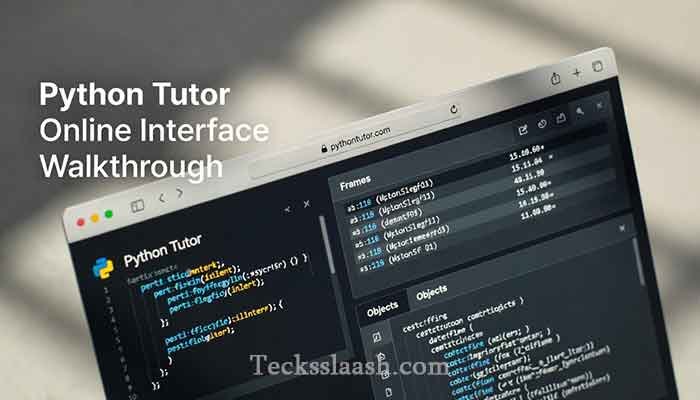
This is where the magic happens. Python Tutor compiles your code and breaks it into individual execution steps. You’ll see:
- The current line highlighted in the code panel
- A Frames panel showing active function calls and local variables
- An Objects panel showing lists, dicts, and other data structures with visual arrows indicating references
Step 4: Step Through with Forward/Back Buttons
Use the Forward and Back buttons to move through execution one step at a time. You can also jump to the beginning or end. Watch how variable values change, how stack frames appear when functions are called, and how they disappear when functions return.
This is the part that builds genuine understanding — not just memorizing syntax.
What You Can Learn with Python Tutor Code Visualization
Here’s where Python Tutor earns its reputation. These are the concepts it makes crystal clear:
Variable scope and lifetime — See exactly when a variable is created and destroyed. Understand why a variable inside a function doesn’t exist outside it.
How Python handles references vs. copies — Critical for lists and dictionaries. You’ll see two variable names literally pointing to the same object.
Recursion — Watch the call stack grow and shrink in real time. This single feature has helped more of my students understand recursion than any explanation I’ve given verbally.
List and dictionary mutations — See when you’re modifying the original vs. working on a copy.
Loop behavior — Trace exactly how a counter changes, when a condition is checked, and when the loop exits.
Python Tutor Visualize: Feature Comparison Table
| Feature | Python Tutor | Standard Python IDLE | Jupyter Notebook |
|---|---|---|---|
| Step-by-step execution | ✅ Yes | ❌ No | ❌ No |
| Memory/reference visualization | ✅ Yes | ❌ No | ❌ No |
| Beginner-friendly UI | ✅ Very | ✅ Moderate | ✅ Moderate |
| Shareable links | ✅ Yes | ❌ No | ✅ With setup |
| Requires installation | ❌ No | ✅ Yes | ✅ Yes |
| Best use case | Learning & debugging | Writing code | Data analysis |
Python Tutor isn’t trying to compete with full IDEs. It wins at the one thing it’s designed for.
Common Problems & Practical Solutions
Problem 1: “My code runs fine but the visualization stops early” This usually happens when your code has an infinite loop or takes too many steps. Python Tutor has a step limit (around 1000 steps). Solution: simplify your code snippet, reduce loop iterations, or test with smaller input values.
Problem 2: “I can’t visualize my file I/O or API calls” Python Tutor runs in a sandboxed environment and doesn’t support file access, external libraries, or network requests. Stick to standard Python logic. For everything else, use your local IDE.
Problem 3: “The visualization is too fast to follow” Don’t use the auto-run feature when you’re learning. Click Forward manually, one step at a time. Read the highlighted line, predict what you think will happen, then click — this active learning approach is far more effective.
Problem 4: “I’m not sure what the arrows in the diagram mean” Arrows represent references — one variable “pointing to” an object in memory. When two names have arrows pointing to the same box, they reference the same object. This is one of the most important things to understand in Python, and seeing it visually clicks faster than any written explanation.
Read More: Learn more about Python’s official documentation on data model and references — docs.python.org/3/reference/datamodel
Frequently Asked Questions
Is Python Tutor completely free?
Yes, Python Tutor Online is 100% free with no sign-up required. Just go to pythontutor.com and start using it immediately.
Can I share my Python Tutor visualization with someone else?
Absolutely. After running your code, Python Tutor generates a shareable URL. Paste it in a WhatsApp message or email, and the recipient sees the exact same code with the same visualization — incredibly useful for getting help from a mentor or classmate.
Does Python Tutor support Python 3?
Yes, you can select Python 3 from the dropdown before running your code. Make sure you select the right version, especially if you’re using f-strings or other Python 3-specific syntax.
Is Python Tutor good for interview prep?
It’s excellent for understanding the logic behind algorithm problems. I wouldn’t use it to practice speed, but for tracing through a sorting algorithm or understanding recursion before an interview — it’s one of the best tools available.
Can Python Tutor handle object-oriented code?
It handles basic OOP reasonably well — you can see instances created, attributes assigned, and method calls traced. For very complex class hierarchies, the visualization can get crowded, but for learning the fundamentals of classes and objects, it works well.
Conclusion: My Final Verdict on Python Tutor
If you’re at the stage where you can write Python but you’re not always sure why it works the way it does, Python Tutor is the tool that bridges that gap. It transformed abstract concepts like variable scope, object references, and recursion from confusing theory into something I could literally watch happen.
My final recommendation: spend 30 minutes this week taking one piece of code you’ve been confused about and running it through Python Tutor step by step. Don’t rush it. Read each line before you click Forward. I’d be genuinely surprised if you don’t have at least one “ohhhh, that’s what’s happening” moment.
Have you tried Python Tutor before? Did it help you crack a concept you were stuck on? Or are you using a different visualization tool? Drop your experience in the comments — I’d love to know what’s working for you.